How to Run OpenClaw on a Home Server Using Docker and Ollama
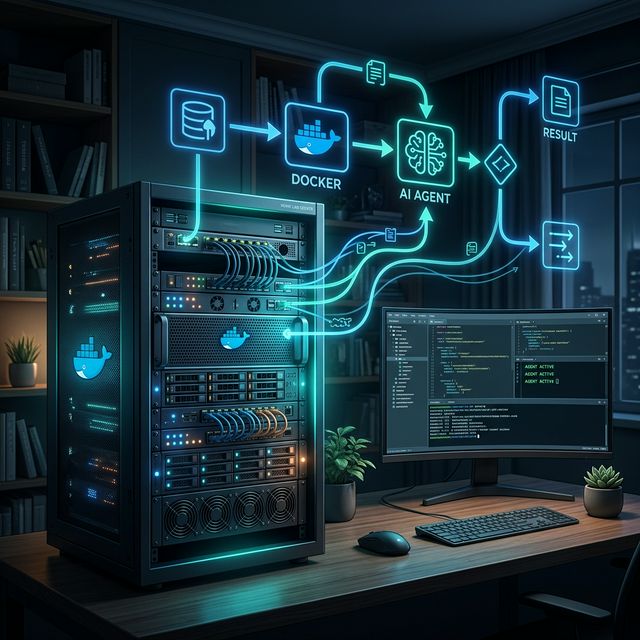
Hosting your own AI agent is the ultimate power move for privacy and cost savings in 2026. OpenClaw (formerly Clawbot) has become the gold standard for "agentic" workflows—allowing an AI to control your computer, manage your calendar, and even send messages via WhatsApp or Telegram—all from your own hardware.
By combining Docker for containerization and Ollama for model serving, you create a stable, isolated environment that can run 24/7. (Be sure to review how doing this saves you $15,000/year).
1. Home Server Minimum Requirements (2026)
Running an agent is more taxing than a simple chatbot because the model must remain "resident" in memory to respond to background triggers. This heavy VRAM requirement dictates your build.
| Component | Minimum (8B Models) | Recommended (32B+ Models) |
|---|---|---|
| CPU | 4-Core (Intel i5 / Ryzen 5) | 8-Core (Apple M3/M4 or Ryzen 9) |
| RAM | 16GB DDR5 | 64GB+ DDR5 / Unified Memory |
| GPU (VRAM) | 8GB (RTX 3070/4060) | 24GB+ (RTX 3090/4090/5090) |
| Storage | 50GB SSD Space | 200GB+ NVMe SSD |
Check out our Hardware Selection Page for deep dives on specific 2026 GPU benchmarks.
2. The Step-by-Step Setup
Step A: Install the Foundation
Before touching OpenClaw, you need the "engine" (Ollama) and the "container" (Docker).
- Install Ollama: Download from ollama.com.
- Install Docker: Download Docker Desktop for Windows/Mac or use
apt install docker.iofor Linux.
Step B: Pull Your AI Model
For OpenClaw to be effective, you need a model that is excellent at Tool Calling. In 2026, the current "Sweet Spot" model is Qwen 3 Coder. Open your terminal and run:
ollama pull qwen3-coder:32bVisit our Model Rankings Page to see why we prefer Qwen 3 over Llama 3 for agentic tasks.
Step C: Deploy OpenClaw via Docker
OpenClaw provides an official Docker Compose file that simplifies the networking between the agent and your local files.
- Clone the Repo:
git clone https://github.com/openclaw/openclaw && cd openclaw - Configure the Environment:
Create a.envfile in the folder. If you are using Ollama locally, set your provider:OPENCLAW_LLM_PROVIDER=ollama OLLAMA_BASE_URL=http://host.docker.internal:11434 - Launch:
docker-compose up -d
3. PC vs. Mac: Key Differences
On Windows (PC):
- Networking: In your
.envfile, you must usehost.docker.internalto allow the Docker container to talk to the Ollama service running on your Windows host. - WSL2: Ensure Docker is set to use the WSL2 backend for significantly faster file access when the agent is writing code.
On macOS (Mac Studio/Mini):
- Unified Memory: If you are on an M2/M3/M4 Ultra, you don't need to worry about VRAM vs System RAM. Ollama will automatically utilize your unified memory.
- Permissions: macOS will prompt you for "Full Disk Access." For OpenClaw to manage your files or calendar, you must grant this to the Docker process under System Settings > Privacy & Security.
4. Final Onboarding
Once the container is running, access the OpenClaw TUI (Terminal User Interface) to link your messaging apps:
docker exec -it openclaw-cli openclaw onboardThe wizard will guide you through:
- Linking WhatsApp/Telegram: Scan the QR code that appears in your terminal.
- Defining Skills: Enable the "Filesystem" and "Web Browser" skills so your agent can actually perform tasks.
OpenClaw "thinks" by looking at its history. If your agent starts "forgetting" tasks, it's likely a context window issue. Ensure your Ollama configuration is set to at least 64,000 tokens in the KV Cache.
5. Troubleshooting Common OpenClaw & Docker Errors
Even with a perfect setup, local AI in 2026 has its quirks. If your agent isn't responding or you see "red text" in your terminal, check these verified fixes.
The "Fetch Failed" / Connection Refused Error
The Symptom: You see TypeError: fetch failed or ECONNREFUSED 127.0.0.1:11434 in the Docker logs.
The Cause: Inside a Docker container, 127.0.0.1 refers to the container itself, not your PC where Ollama is running.
The Fix (Mac/Windows): Change your OLLAMA_BASE_URL in the .env file to http://host.docker.internal:11434.
The Fix (Linux): Docker for Linux doesn't support host.docker.internal by default. Add this to your docker-compose.yml under the openclaw service:
extra_hosts:
  - "host.docker.internal:host-gateway"
The "Pairing Required" Loop
The Symptom: The dashboard says "Error: pairing required" or "1008: pairing required."
The Cause: OpenClaw requires explicit admin approval for any new "device" (even your own browser) to prevent unauthorized access.
The Fix:
1. Run this command in your terminal: docker exec -it openclaw-gateway openclaw devices list
2. Find your Request ID and run: docker exec -it openclaw-gateway openclaw devices approve <REQUEST_ID>
WhatsApp "Logging In" Hangs
The Symptom: You scan the QR code, your phone says "Linking," but the OpenClaw dashboard stays stuck on "Logging in..."
The Cause: This is a known 2026 bug with the session handshake.
The Fix: Restart the container while the phone says "Logging in."docker-compose restart openclaw-gateway
Wait 30 seconds, and the session should finalize. If it fails, clear the cache with rm -rf ~/.openclaw/credentials/whatsapp and try again.
"Truncating Input Messages" (The Context Wall)
The Symptom: The agent "forgets" the beginning of the conversation or gives short, halluncinated answers.
The Cause: Ollama defaults to a 4,096 (4k) context window, which is too small for agents.
The Fix: You must manually increase the context in your Ollama Modelfile.
FROM qwen3-coder:32b
PARAMETER num_ctx 65536
Then run: ollama create qwen3-agent -f Modelfile and update your OpenClaw config to use the new qwen3-agent model.
6. Security Warning: Don't Be a Statistic
OpenClaw has "omnipotent" control over your system.
- NEVER expose port 18789 (the gateway) to the public internet without a VPN like Tailscale.
- USE A SANDBOX: If you are running untrusted "Skills," run OpenClaw in a restricted Docker volume so it cannot delete your actual PC files.
- MONITOR LOGS: Occasionally run
docker compose logs -fto see if your agent is trying to execute unexpected commands.
Common Questions & Solutions
- Q: I’m on Windows/Mac. Why is my GPU not being used?
- The Fix: If you run Ollama inside Docker, you need to install the NVIDIA Container Toolkit (for Windows/Linux) or ensure Docker Desktop has "GPUS" enabled. However, for most home servers, it is highly recommended to run Ollama natively on the host OS and use the
host.docker.internallink provided in the script above. This avoids the massive performance overhead of virtualized GPU drivers. - Q: How do I update OpenClaw?
- The Fix: Unlike a standard app, you don't "click update." Run these three commands in your folder:
docker compose pulldocker compose up -d --remove-orphansdocker exec -it openclaw-gateway openclaw doctor --fix
(This ensures your old config files match the new version's requirements). - Q: The agent says "I can't see those files."
- The Fix: Remember that OpenClaw is "sandboxed." It can only see files inside the
~/openclaw/workspacefolder on your computer. If you want it to see your Documents or Downloads, you must add them as additional volumes in thedocker-compose.ymlfile, like this:- ~/Downloads:/home/node/.openclaw/workspace/downloads - Q: My server restarted and OpenClaw didn't come back.
- The Fix: Ensure your Docker service is set to start on boot. On Linux, run
sudo systemctl enable docker. Therestart: unless-stoppedline in our script handles the rest.
About the Author: Justin Murray
AI Computer Guide Founder, has over a decade of AI and computer hardware experience. From leading the cryptocurrency mining hardware rush to repairing personal and commercial computer hardware, Justin has always had a passion for sharing knowledge and the cutting edge.