Step-by-Step: Setting Up Ollama with Open WebUI for a ChatGPT-like Experience
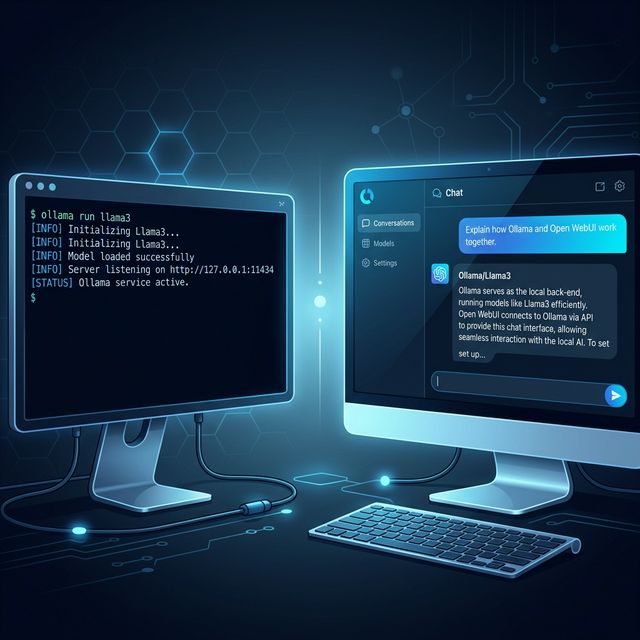
The command line is great for testing, but for daily productivity, you need a real interface. Open WebUI (formerly Ollama WebUI) is a professional-grade, self-hosted frontend that mimics the ChatGPT experience while keeping 100% of your data on your own hardware.
In this guide, we'll walk through the "One-Container" setup that gets you up and running in under 10 minutes. This works alongside any model you've pulled via Ollama — from Llama 3.3 to DeepSeek R1.
1. Prerequisites: The "Local AI" Stack
To get a smooth, lag-free experience, ensure your system meets these 2026 standards:
- Ollama Installed: Running natively on your host OS (Windows, Mac, or Linux). Download it at ollama.com.
- Docker Desktop: Installed and running.
- Hardware: 16GB RAM minimum (for 8B models). For the best experience, we recommend an RTX 30-series or higher, or an Apple M-Series chip. Check our VRAM Calculator to verify your setup.
2. Step 1: Prepare Ollama for Connection
By default, Ollama only listens to your local machine (127.0.0.1). Since Open WebUI runs inside a Docker container, we need to tell Ollama to "listen" for the container's requests.
On Windows:
- Search for "Environment Variables" in your Start menu.
- Add a new User Variable:
- Name:
OLLAMA_HOST - Value:
0.0.0.0
- Name:
- Restart Ollama from the system tray.
On Mac/Linux:
Run this in your terminal to set the variable for the current session, or add it to your .zshrc or .bashrc:
export OLLAMA_HOST=0.0.0.0Docker containers are isolated virtual environments. Without this variable, when Open WebUI tries to reach host.docker.internal:11434, Ollama refuses the connection because it's only bound to the loopback interface. This is the #1 cause of "Connection Refused" errors.
3. Step 2: The "Magic" Docker Command
Open WebUI is best deployed via Docker. This ensures that all dependencies (like the database for your chat history) stay isolated.
Run the following command in your terminal. This version is optimized for 2026 hardware detection:
docker run -d -p 3000:8080 \
  --add-host=host.docker.internal:host-gateway \
  -v open-webui:/app/backend/data \
  --name open-webui \
  --restart always \
  ghcr.io/open-webui/open-webui:main
What do these flags do?
-p 3000:8080: Maps the interface tolocalhost:3000in your browser.--add-host: The "secret sauce" that lets the container talk to your local Ollama instance. For this reason, you should use the same pattern with OpenClaw.-v open-webui: Creates a persistent volume so you don't lose your chat history when you restart your computer.--restart always: Ensures Open WebUI boots automatically with your computer — no manual starting needed.
4. Step 3: Accessing Your Private ChatGPT
Open your browser and go to: http://localhost:3000
- Create an Account: The first account created is the Admin. This data is stored locally on your hard drive, not in the cloud.
- Select Your Model: Click the dropdown at the top. If your Ollama is running, you will see your downloaded models (like Llama 3.3 or Qwen 3).
http://host.docker.internal:11434.5. Why Open WebUI is Better than the CLI
While ollama run is fast for testing, Open WebUI adds "Executive" features that make local AI feel like a premium product:
- Persistent History: Every chat is saved, searchable, and organized into folders — just like ChatGPT.
- RAG (Retrieval Augmented Generation): You can upload PDFs or text files directly into the chat, and the AI will "read" them before answering. This is why having ample VRAM matters — RAG loads extra context into memory.
- Model Comparison: Run two models (e.g., Llama 3.3 vs. Mistral) side-by-side to see which gives a better answer.
- Image Generation: If you have ComfyUI or Automatic1111 running, you can link them to generate images within the chat window.
6. Recommended Models for 2026
If you want the closest experience to ChatGPT Plus, pull these via your terminal. Use the Token Speed Estimator to benchmark each on your hardware:
ollama pull gpt-oss:20b        # 2026 gold standard for local reasoning
ollama pull qwen3-coder:14b   # Best for coding and technical logic
ollama pull llama4:8b         # Fastest daily-driver model
Not sure which GPU can run these? Check What Can I Run? to see every model mapped to your specific hardware's VRAM tier, or compare GPUs side-by-side.
Troubleshooting Tip: "Connection Refused"
If the WebUI can't find Ollama, it's almost always a firewall or host binding issue. Ensure your OS isn't blocking port 11434. You can test if Ollama is "reachable" by visiting http://localhost:11434 in your browser — you should see the message: "Ollama is running".
If you're running multiple containers (e.g., also using OpenClaw), verify there are no port conflicts. Using docker ps will list all running containers and their port bindings.
A smooth Open WebUI experience depends on having the right GPU. We built the AI Computer Builder to help you pick the perfect rig for your target models — fully configured and priced with fast shipping via Amazon.
About the Author: Justin Murray
AI Computer Guide Founder, has over a decade of AI and computer hardware experience. From leading the cryptocurrency mining hardware rush to repairing personal and commercial computer hardware, Justin has always had a passion for sharing knowledge and the cutting edge.