The Essential Guide to LM Studio — Run Local LLMs + Tools
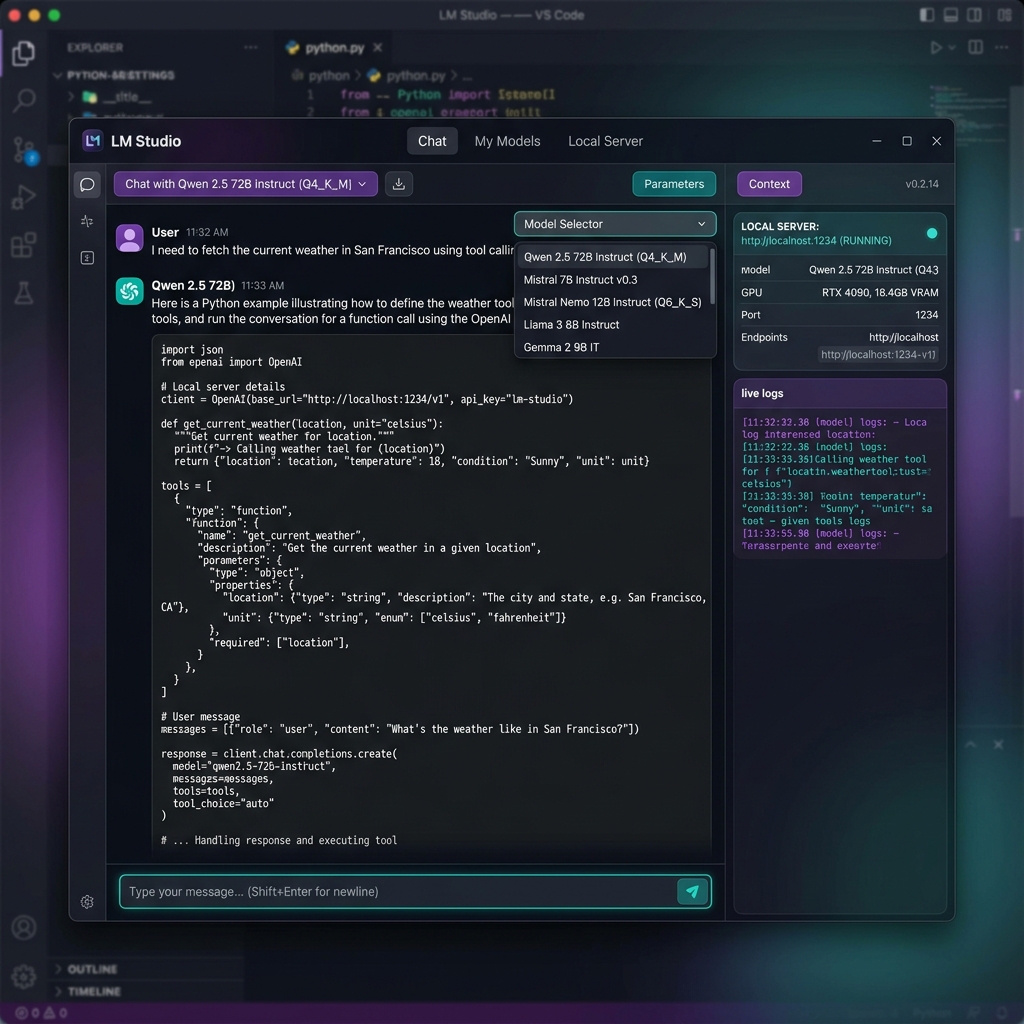
LM Studio has quietly become the most approachable way to run state-of-the-art language models on your own hardware. No cloud bills, no data leaving your machine, no API rate limits — just a slick desktop interface and a surprisingly powerful local server. This guide covers everything from your first download to building tool-calling agents.
1. What Is LM Studio?
LM Studio is a free, cross-platform desktop application (macOS, Windows, Linux) for downloading, managing, and running open-weight large language models entirely on your local machine. Think of it as a private, self-hostable alternative to ChatGPT — one that runs on your own GPU rather than on someone else's cloud.
Under the hood, LM Studio uses llama.cpp for GGUF-quantized models on Windows and Linux, and Apple's MLX framework on Apple Silicon Macs. Both backends are highly optimized for consumer hardware, meaning you don't need a data-center GPU to get useful inference speeds.
Beyond the chat interface, LM Studio exposes an OpenAI-compatible REST API on localhost:1234, making it a drop-in local backend for any application that already speaks the OpenAI API format — including Open WebUI, IDE extensions, and your own Python scripts.
Core Feature Set
- Model Browser: Search and download directly from Hugging Face without leaving the app.
- Chat Interface: Multi-turn conversations with system prompt control, temperature, and context-length settings.
- Local Server: An OpenAI-compatible
/v1/chat/completionsendpoint for programmatic access. - Tool Calling: Support for function-calling workflows via JSON schema definitions.
- MCP Client: Connect Model Context Protocol servers to give your local model access to live data and external tools.
- RAG: Attach PDFs and documents to any chat session for offline document Q&A.
- Speculative Decoding: Use a small draft model to accelerate inference on large models.
2. What Is llmster? (Headless Mode)
llmster is the headless, GUI-free version of LM Studio. Rather than opening the desktop application, llmster lets you load models and serve the local inference API directly from your terminal — making it perfect for servers, CI/CD pipelines, automated workflows, and any environment where a graphical interface is impractical.
You interact with llmster via the LM Studio CLI. Once a model is loaded, the same localhost:1234 API is available just as it is from the desktop app, so your existing Python scripts require zero changes.
- 🖥️ Desktop App — Daily coding assistant, document chat, model exploration.
- ⚙️ llmster — Background inference server, automated scripts, SSH-accessible home lab.
If you're more comfortable with a CLI-first workflow and want to combine a headless backend with a web UI, check out our guide on Setting Up Ollama + Open WebUI — LM Studio's server is fully compatible with Open WebUI using the same approach.
3. System Requirements & Hardware
LM Studio's hardware requirements are driven entirely by the model you want to run. The golden rule: the entire model (or its active layers) must fit in your GPU's VRAM for GPU-accelerated inference. If it doesn't fit, it spills into system RAM — which works, but is 5–10× slower.
| Model Size | Quant | Min VRAM | Recommended GPU |
|---|---|---|---|
| 3B–7B | Q4_K_M | 4–6 GB | RTX 4060 (8 GB) |
| 13B–14B | Q4_K_M | 10–12 GB | RTX 4070 (12 GB) |
| 30B–34B | Q4_K_M | 20–24 GB | RTX 3090 / 4090 (24 GB) |
| 70B+ | Q4_K_M | 40–48 GB | Dual RTX 3090 or Mac Studio M4 Max |
Not sure if your GPU can handle a specific model? Use our VRAM Calculator to instantly check compatibility, or see the full What Can My GPU Run? database. For a deeper dive into why VRAM is the critical bottleneck, read Why AI Agents Need More VRAM.
4. Getting Started: Download & First Chat
Download LM Studio from the official site at lmstudio.ai. The installer is straightforward on all three platforms. Once open:
- Open the Discover Tab — This is LM Studio's built-in model browser, powered by the Hugging Face Hub. Search for any model family (e.g., "Qwen" or "Mistral").
- Choose a Quantization — For most users,
Q4_K_Mis the sweet spot between quality and file size. Refer to the AI Glossary for a breakdown of quantization formats. - Download the Model — LM Studio streams the GGUF file directly to your local models folder. A 7B Q4 model is typically 4–5 GB.
- Load and Chat — Select the model from the Chat tab, configure your system prompt, and start a conversation. LM Studio shows real-time token speed (tokens/second) so you can immediately see how fast your hardware is running.
Go to Settings → Interface → Enable Developer Mode to unlock advanced controls: raw JSON request/response viewer, logit bias sliders, and full sampling parameter access (LM Studio docs).
5. Running the Local Inference Server
One of LM Studio's most powerful features is its built-in Local Inference Server. It exposes an OpenAI-compatible REST API on http://localhost:1234, which means any application designed for the OpenAI API — extensions, scripts, agents — can use your local model as a drop-in replacement with zero code changes, as described in the LM Studio Developer Docs.
How to Start the Server
- Click the Developer tab (or Local Server icon) in LM Studio.
- Select the model you want to serve from the dropdown.
- Click Start Server. The status indicator turns green when it's live.
Once running, you can point any OpenAI-compatible client to http://localhost:1234/v1:
import openai

client = openai.OpenAI(
    base_url="http://localhost:1234/v1",
    api_key="lm-studio"  # Any non-empty string works
)

response = client.chat.completions.create(
    model="qwen2.5-14b-instruct",
    messages=[
        {"role": "system", "content": "You are a helpful AI assistant."},
        {"role": "user", "content": "Explain quantization in one paragraph."}
    ]
)
print(response.choices[0].message.content)
This same server setup is what makes LM Studio compatible with tools like Open WebUI and OpenClaw — just point them at port 1234 instead of Ollama's 11434.
6. Tool Use & Function Calling
Tool use (also called function calling) lets an LLM request the execution of real code on your behalf. Instead of just returning text, the model returns a structured JSON object saying "I need you to call this function with these arguments." Your application executes the function, sends the result back, and the model incorporates it into its final response.
This is the backbone of agentic AI workflows — it's what separates a chatbot from an AI assistant that can actually do things.
Key Aspects of LM Studio Tool Use
- Function Definition: Tools are declared as a JSON array in the
toolsparameter of your/v1/chat/completionsrequest. Each entry defines the function name, a natural-language description, and a parameter schema — exactly as defined in the LM Studio documentation. - Model Compatibility: Not every model supports tool calling. You need purpose-built instruction-tuned variants, such as Qwen 2.5 Instruct, Mistral 7B Instruct, Llama 3.1 (Tool Use variant), or Gemma function-calling models. Check the model card on Hugging Face before downloading.
- The Workflow: The model reads your prompt → determines a tool is needed → returns a
tool_callsJSON object → your code runs the function → you send the output back as atoolrole message → the model generates a final answer incorporating the result. - Local Backend: LM Studio's server at
http://localhost:1234is the endpoint your scripts target. It acts as a private, zero-cost LLM backend without modifying your existing OpenAI-compatible code, per the LM Studio developer docs. - Python SDK: LM Studio's Python SDK (
lmstudio-python) provides higher-level abstractions for building agentic behaviors — including decorated function definitions, automatic tool dispatch, and session management.
How to Implement Tool Use (Step-by-Step)
- Load a Compatible Model: In LM Studio, search for and download a model tagged with "function calling" or "tool use" — Qwen 2.5 Instruct and Mistral Instruct are reliable choices. Enable the local server and load the model.
- Define Your Tool: Using the Python SDK, you can use type-hinted functions or
ToolFunctionDefobjects to declare what the model can call, as outlined in the LM Studio Python documentation. - Run the Server: Start the Local Inference Server from LM Studio's Developer tab.
- Send the Request: Make a
POSTto/v1/chat/completionswith your messages and thetoolsarray defined. - Process the Response: Check if
finish_reasonis"tool_calls". If so, extract the function name and arguments, execute your local function, and append the result as a{"role": "tool"}message before making a follow-up completion request.
import json, openai

client = openai.OpenAI(base_url="http://localhost:1234/v1", api_key="lm-studio")

tools = [{
    "type": "function",
    "function": {
        "name": "get_weather",
        "description": "Fetches current weather for a given city.",
        "parameters": {
            "type": "object",
            "properties": {
                "city": {"type": "string", "description": "City name, e.g. 'Seattle'"}
            },
            "required": ["city"]
        }
    }
}]

messages = [{"role": "user", "content": "What's the weather in Austin right now?"}]

# Step 1: Ask the model
response = client.chat.completions.create(
    model="qwen2.5-14b-instruct", messages=messages, tools=tools
)
msg = response.choices[0].message

# Step 2: Execute the tool locally
if msg.tool_calls:
    tool_call = msg.tool_calls[0]
    args = json.loads(tool_call.function.arguments)
    weather_result = f"Sunny, 82°F in {args['city']}"  # Replace with real API call

    messages += [msg, {
        "role": "tool",
        "tool_call_id": tool_call.id,
        "content": weather_result
    }]

    # Step 3: Get final answer
    final = client.chat.completions.create(model="qwen2.5-14b-instruct", messages=messages)
    print(final.choices[0].message.content)
Example Applications of Local Tool Use
- Web Search: Fetching live information (stock prices, news, current weather) by calling a search API from within your script, keeping results private.
- File Manipulation: Creating, reading, or editing files on your local filesystem — useful for coding assistants or document-processing pipelines.
- Data Processing: Running calculations, formatting datasets, querying a local SQLite database, or parsing structured files like CSVs.
7. MCP Server Integration
Model Context Protocol (MCP) is an open standard for connecting LLMs to external tools and live data sources. LM Studio 0.3.x+ ships as a native MCP client, meaning you can install community-built MCP servers and give your local models access to real-world capabilities directly inside the chat interface — no code required.
Popular MCP servers include: filesystem access, web search, database queries, GitHub integration, and custom API wrappers. Because LM Studio processes everything locally, your tool calls and data never leave your machine.
This is a significant upgrade over the basic tool-calling described above — MCP handles the tool dispatch loop automatically, so the model can chain multiple tool calls within a single conversation turn.
8. Chat with Documents (RAG)
LM Studio's built-in RAG (Retrieval-Augmented Generation) feature lets you attach documents — PDFs, text files, Markdown — directly to a chat session. The model reads your document's content and uses it as context when generating answers, entirely offline.
This makes LM Studio a powerful private alternative to ChatGPT for:
- Summarizing confidential reports or contracts
- Answering questions about technical documentation
- Extracting structured data from research papers
For RAG workloads, VRAM headroom matters — the document context is loaded alongside the model weights. See Why AI Agents Need More VRAM for a full explanation, or check your GPU's capacity.
9. Best Models to Run in LM Studio (2026)
The model you choose matters as much as the hardware. Here are top-performing models at each VRAM tier, with direct links to the model pages for download details and benchmark comparisons:
- 8 GB VRAM (Entry): Qwen 2.5 7B Instruct Q4_K_M — Excellent reasoning for its size, strong tool-calling support.
- 12 GB VRAM (Mid-Range): Mistral 12B Instruct Q4_K_M — Fast, multilingual, solid coding.
- 24 GB VRAM (Prosumer): DeepSeek R1 Distill 32B Q4_K_M — Near-frontier reasoning at a fraction of the cost. Check the best GPU for DeepSeek R1.
- 48 GB+ (Elite): Llama 3.3 70B Q4_K_M — Open-weight frontier performance. Pair with dual RTX 3090s or an Apple M4 Max.
Browse the full AI Models Library for specs, VRAM requirements, and hardware compatibility charts. If you're building a rig specifically for LM Studio, start with the AI Computer Builder — it filters components by model compatibility.
For a broader perspective on local AI economics, our Local vs. Cloud Agents Cost Analysis breaks down exactly how much you save versus paying OpenAI or Anthropic API rates at scale.
The difference between a frustrating 2 tokens/sec and a snappy 40 tokens/sec is almost entirely your GPU's VRAM and memory bandwidth. Use our AI Computer Builder to configure a rig tuned for your target model, or compare GPUs side-by-side on VRAM, bandwidth, and price.
Frequently Asked Questions
Common questions about LM Studio from developers and enthusiasts getting started with local AI.
What is LM Studio used for?
Is LM Studio free to use?
Is LM Studio only for Mac?
Which company owns LM Studio?
Which is better, Ollama or LM Studio?
Can my PC run LM Studio?
Can LM Studio run without internet?
Is LM Studio free or paid?
Does LM Studio track you?
Is LM Studio safe?
Can LM Studio read PDFs?
What are alternatives to LM Studio?
About the Author: Justin Murray
AI Computer Guide Founder, has over a decade of AI and computer hardware experience. From leading the cryptocurrency mining hardware rush to repairing personal and commercial computer hardware, Justin has always had a passion for sharing knowledge and the cutting edge.